True Touchpad Interface: Love It or Hate It? Here's How to Master It
Table of Contents
True Touchpad Interface: Love It or Hate It? Here's How to Master It
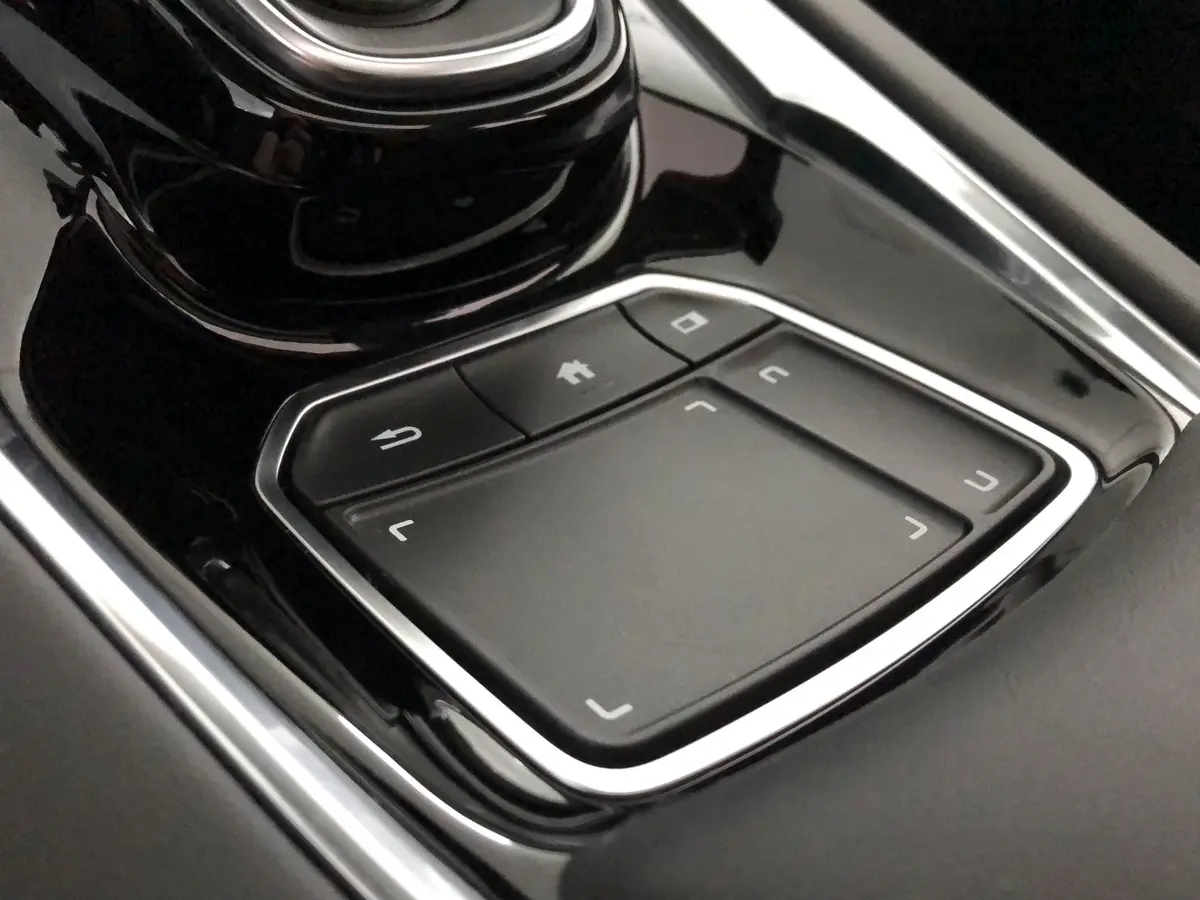
Acura's True Touchpad Interface has become one of the most polarizing features in modern luxury vehicles. Some drivers swear by it once they learn the system. Others immediately declare it the worst interface they've experienced. The truth? It's actually quite intuitive once you understand how it works.
Understanding the Design Philosophy
Unlike traditional touchscreens where you reach up to poke at a display, Acura designed the True Touchpad as a one-to-one mapping system. The touchpad surface directly corresponds to the screen layout. Touch the top-left corner of the pad, and you're selecting the top-left item on screen. Touch the center, you're selecting the center.
This design keeps your eyes on the road and your hand in a natural, ergonomic position. No more stretching to reach a touchscreen. Once you internalize this direct mapping concept, navigation becomes intuitive.
The Learning Curve Reality
Let's be honest: the first few drives feel clumsy. You'll overshoot selections, accidentally trigger the wrong functions, and probably curse the system. This is normal. Your brain is wired for touchscreens or traditional knobs and buttons. The touchpad requires retraining your muscle memory.
Give yourself a week of regular use. By day five or six, most drivers report the system starting to click. By two weeks, you're navigating without conscious thought.
Essential Techniques for Success
First, don't slide your finger around the pad like you would on a smartphone. Use quick, decisive taps on the area corresponding to your desired selection. Sliding creates imprecision.
Second, use the physical volume knob and back button. These hard buttons eliminate the need to navigate menus for common functions. Quick volume adjustments stay tactile and instant.
Third, rely on voice commands for complex tasks. Need to enter a navigation destination? Speaking the address is faster than typing on the touchpad. Acura's voice recognition handles addresses, phone calls, and audio selections well.
Customizing for Better Experience
Spend time arranging your favorites and shortcuts. The system allows customization of frequently used features. Place your most-used functions where they're easiest to access quickly.
Learn the shortcut gestures. Swiping specific directions can jump directly to certain menus without navigating through multiple screens. Check your owner's manual for the complete list.
When It Actually Shines
Once mastered, the True Touchpad Interface excels at certain tasks. Making quick adjustments while driving becomes second nature. Your hand rests naturally on the center console, and selections happen without looking away from the road for extended periods.
The system also stays cleaner than touchscreens. No fingerprint smudges on your display. The touchpad surface is easy to wipe clean.
The Honest Assessment
Will everyone love this system? No. If you strongly prefer touchscreens or traditional knobs, the True Touchpad Interface might never feel ideal. That's okay. Some BMW drivers never warm up to iDrive either.
However, if you commit to the learning curve and understand the design philosophy, you'll likely find the system becomes transparent. It fades into the background, doing its job without demanding attention.
The key is patience and practice. Don't judge it harshly after one test drive or your first week of ownership.
Need hands-on guidance with your Acura's True Touchpad Interface? Stop by Jay Wolfe Acura, and our team will walk you through tips and shortcuts to master the system quickly.